> ## Documentation Index
> Fetch the complete documentation index at: https://bruno-a6972042-mintlify-5cf3e75d.mintlify.site/llms.txt
> Use this file to discover all available pages before exploring further.
# Create a Collection
A collection in Bruno is a structured group of API requests, tests, and related resources that helps you organize and manage your API testing workflow.
If you have an existing collection inside of another tool that you would like to import, please see [Importing Collections ↗](../import-export-data/import-collections).
## How to Create a Collection
1. Open Bruno and navigate to the **home screen**
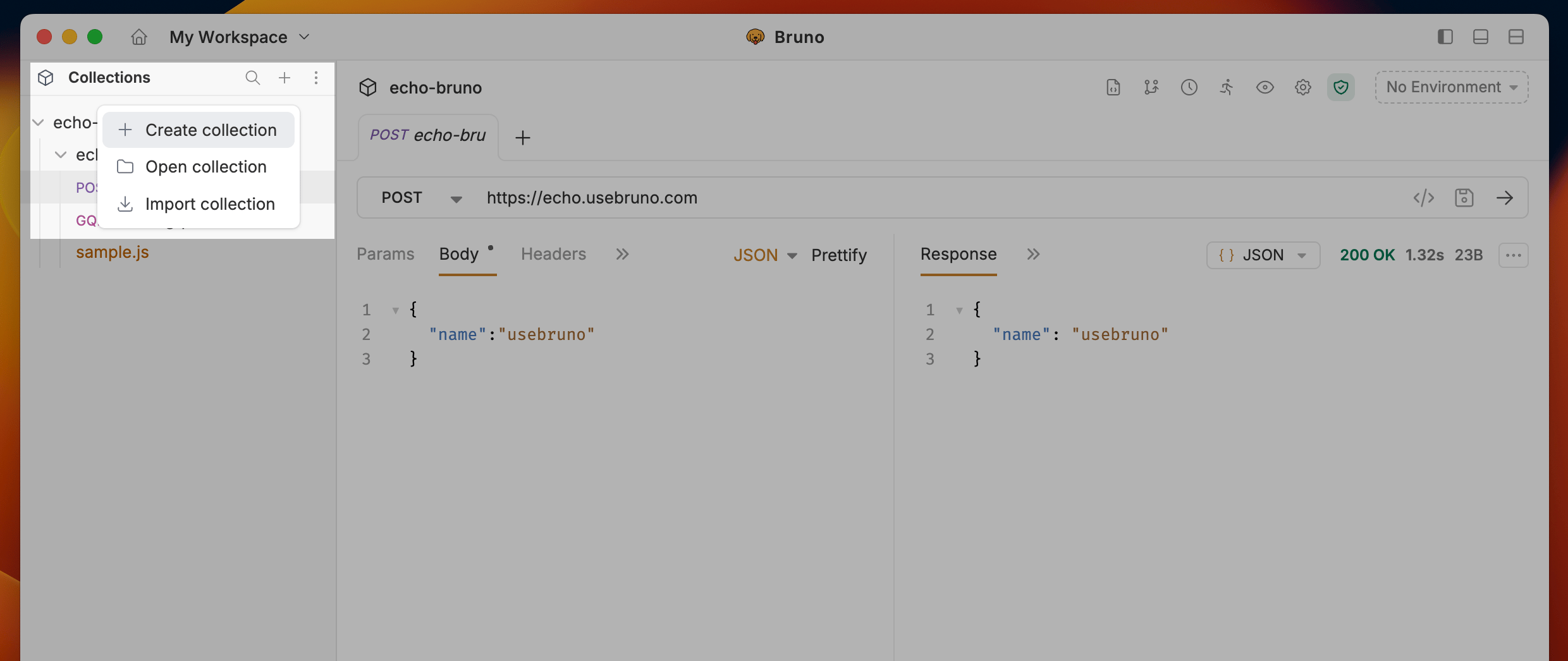
2. Click on the `+` button and select **Create Collection** from the dropdown.
 3. Enter a name for your collection.
4. **(Optional)**:
* To store the collection at a custom location: click the **settings icon** (advanced options) and choose the desired folder on your system.
* Click on **Options** dropdown and select **YAML** to change the file format to YAML or BRU -> YAML recommended.
3. Enter a name for your collection.
4. **(Optional)**:
* To store the collection at a custom location: click the **settings icon** (advanced options) and choose the desired folder on your system.
* Click on **Options** dropdown and select **YAML** to change the file format to YAML or BRU -> YAML recommended.
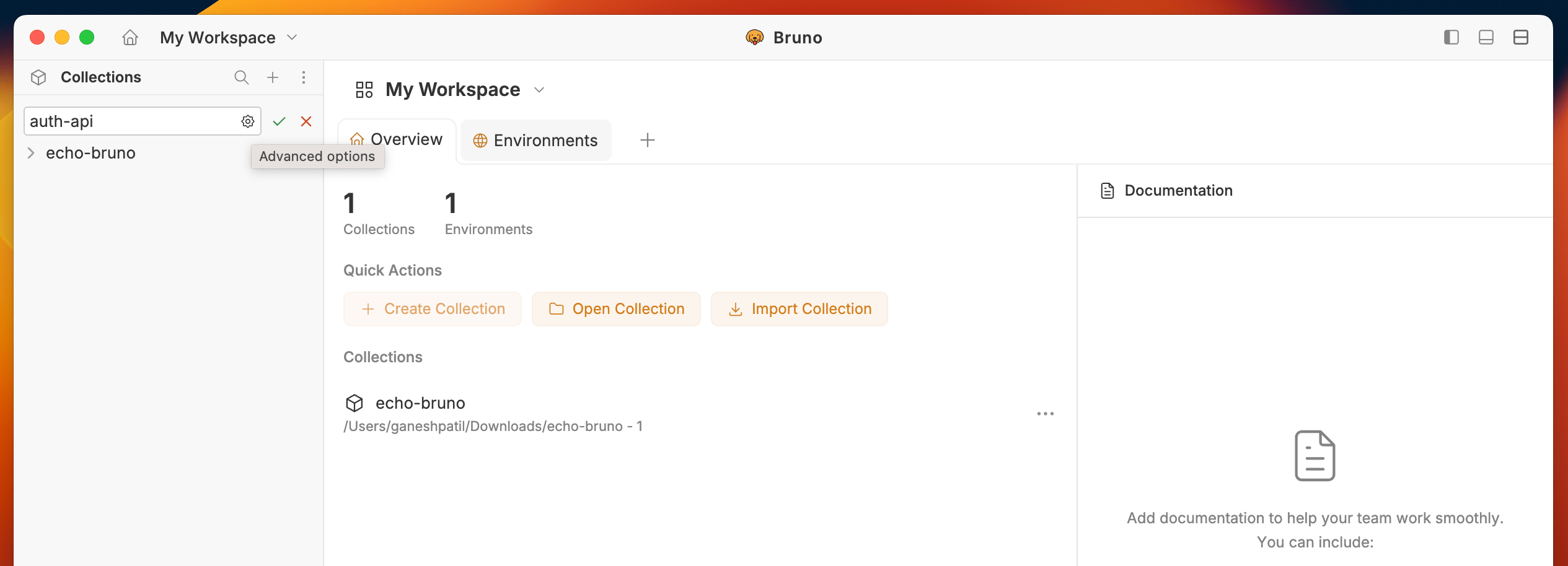 If you skip this, the collection is stored at the default location: `~/Documents/bruno` (e.g. `/Users/username/Documents/bruno`). You can view or change the default location in **Preferences** → **General** tab. See [Settings](/get-started/configure/settings#general).
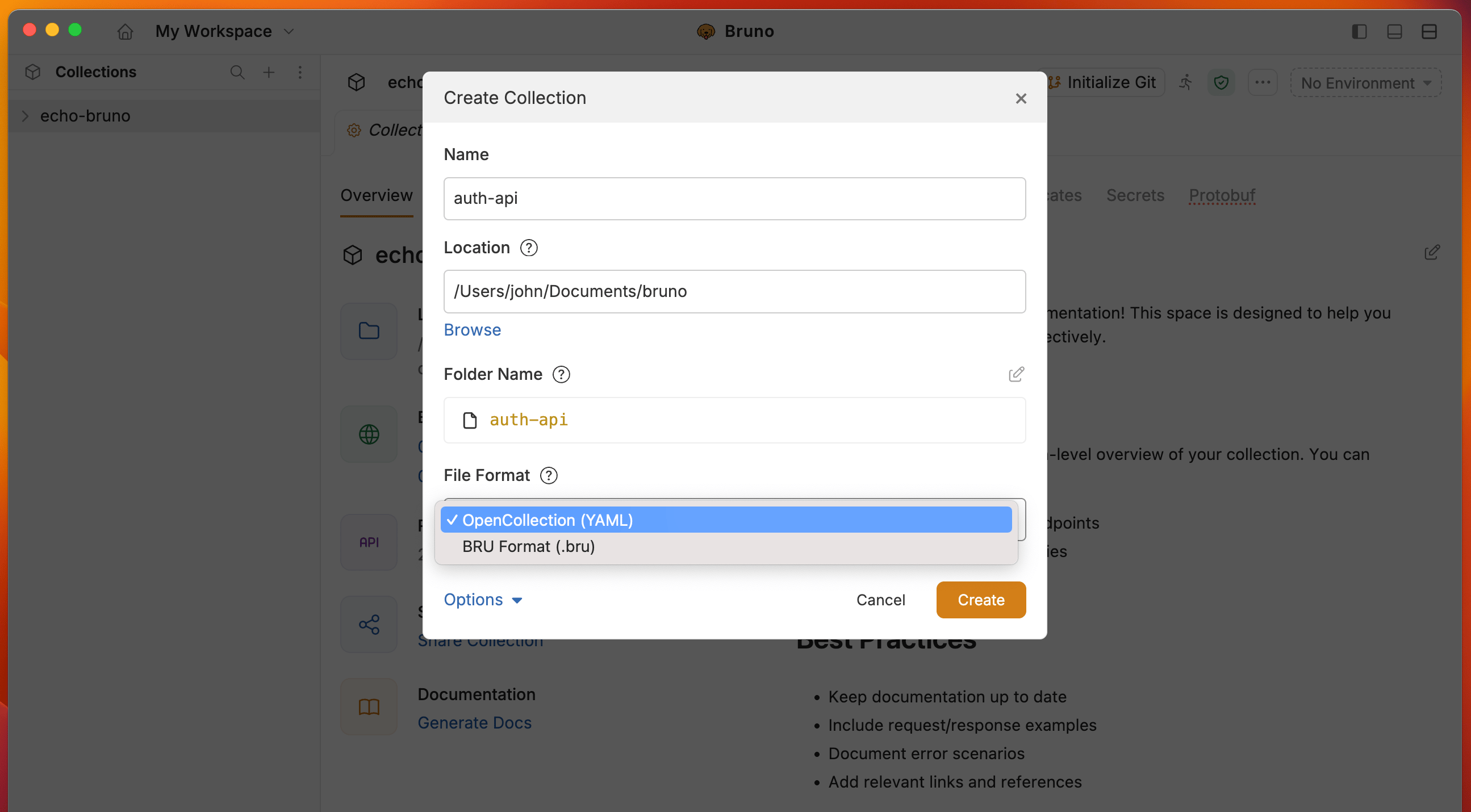 5. Choose or confirm the location on your filesystem for the collection.
6. Click **Create**
After you create a collection, use the `+` menu for related actions:
* **Create a Collection** - Creates a new collection in the current workspace.
* **Open Collection** - Opens one or more existing Bruno collections from a folder on disk.
* **Import Collection** - Imports a collection from other tools (Postman, GitHub Import, Insomnia, etc.).
### How to open one or more collections
1. Open Bruno and click the `+` button in the left-top corner sidebar
2. Select **Open Collection**.
3. Choose a folder on your filesystem.
4. Bruno scans nested folders for Bruno collections (folders that contain `opencollection.yml` or `bruno.json`).
5. In the open collection modal, review the collections found.
6. Select one or more collections, then click **Open**.
Bruno adds the selected collections to your workspace. You do not need to open each nested collection separately.
The flow matches how Bruno opens collections after a [Git clone](/git-providers/github#access-and-import-public-repositories): scan the folder, list Bruno collections found inside, then select one or more to open.
Opening a parent folder that contains multiple collections is useful for monorepos and shared team directories. Select every collection you need in the modal, then open them together.
## Close or delete a collection
Bruno separates closing a collection (removing it from the workspace) from deleting it (removing the files from disk).
### Close a collection (keep files)
Closing a collection removes it from the workspace sidebar. The files stay on disk and can be re-opened later.
1. In the sidebar, hover over the collection and open its menu (three-dot icon), or right-click the collection name.
2. Select **Remove**.
3. Confirm in the **Remove Collection** dialog. If the collection has unsaved drafts, Bruno prompts you to save or discard them first.
You can also close collections from the workspace home page: open the collection card's menu and select **Remove**.
### Delete a collection (permanent)
Deleting a collection permanently removes the collection files from disk. This action cannot be undone.
1. Open the workspace home page.
2. Locate the collection card and open its menu.
3. Select **Delete**.
4. In the confirmation dialog, type `delete` to enable the **Delete** button, then confirm.
Delete permanently removes the collection files from your filesystem. If the collection is tracked in Git, delete it from the workspace and remove the folder through your version control workflow instead if you want to preserve history.
## Automatic Git Configuration
When you create a new collection or workspace, Bruno automatically generates a `.gitignore` file with recommended settings to ensure proper Git hygiene out of the box.
**What's Included in `.gitignore`:**
* Temporary files and caches
* Environment variable files with sensitive data
* Generated metadata
* System-specific files
The automatically generated `.gitignore` file helps prevent accidentally committing sensitive information (like API keys in environment variables) or unnecessary files to version control.
## Custom Collection Names
You can use any characters in your collection names, including special characters like `/`, `[`, `]`, `*`, etc. Bruno automatically handles filesystem compatibility by replacing unsupported characters with `-` in the filenames while preserving your original collection name.
[Add a request ↗](https://docs.usebruno.com/get-started/bruno-basics/create-a-request) to your collection as a next step!
If you're looking to collaborate and share with your team, please see [Collaboration in Bruno ↗](https://docs.usebruno.com/git-integration/overview).
5. Choose or confirm the location on your filesystem for the collection.
6. Click **Create**
After you create a collection, use the `+` menu for related actions:
* **Create a Collection** - Creates a new collection in the current workspace.
* **Open Collection** - Opens one or more existing Bruno collections from a folder on disk.
* **Import Collection** - Imports a collection from other tools (Postman, GitHub Import, Insomnia, etc.).
### How to open one or more collections
1. Open Bruno and click the `+` button in the left-top corner sidebar
2. Select **Open Collection**.
3. Choose a folder on your filesystem.
4. Bruno scans nested folders for Bruno collections (folders that contain `opencollection.yml` or `bruno.json`).
5. In the open collection modal, review the collections found.
6. Select one or more collections, then click **Open**.
Bruno adds the selected collections to your workspace. You do not need to open each nested collection separately.
The flow matches how Bruno opens collections after a [Git clone](/git-providers/github#access-and-import-public-repositories): scan the folder, list Bruno collections found inside, then select one or more to open.
Opening a parent folder that contains multiple collections is useful for monorepos and shared team directories. Select every collection you need in the modal, then open them together.
## Close or delete a collection
Bruno separates closing a collection (removing it from the workspace) from deleting it (removing the files from disk).
### Close a collection (keep files)
Closing a collection removes it from the workspace sidebar. The files stay on disk and can be re-opened later.
1. In the sidebar, hover over the collection and open its menu (three-dot icon), or right-click the collection name.
2. Select **Remove**.
3. Confirm in the **Remove Collection** dialog. If the collection has unsaved drafts, Bruno prompts you to save or discard them first.
You can also close collections from the workspace home page: open the collection card's menu and select **Remove**.
### Delete a collection (permanent)
Deleting a collection permanently removes the collection files from disk. This action cannot be undone.
1. Open the workspace home page.
2. Locate the collection card and open its menu.
3. Select **Delete**.
4. In the confirmation dialog, type `delete` to enable the **Delete** button, then confirm.
Delete permanently removes the collection files from your filesystem. If the collection is tracked in Git, delete it from the workspace and remove the folder through your version control workflow instead if you want to preserve history.
## Automatic Git Configuration
When you create a new collection or workspace, Bruno automatically generates a `.gitignore` file with recommended settings to ensure proper Git hygiene out of the box.
**What's Included in `.gitignore`:**
* Temporary files and caches
* Environment variable files with sensitive data
* Generated metadata
* System-specific files
The automatically generated `.gitignore` file helps prevent accidentally committing sensitive information (like API keys in environment variables) or unnecessary files to version control.
## Custom Collection Names
You can use any characters in your collection names, including special characters like `/`, `[`, `]`, `*`, etc. Bruno automatically handles filesystem compatibility by replacing unsupported characters with `-` in the filenames while preserving your original collection name.
[Add a request ↗](https://docs.usebruno.com/get-started/bruno-basics/create-a-request) to your collection as a next step!
If you're looking to collaborate and share with your team, please see [Collaboration in Bruno ↗](https://docs.usebruno.com/git-integration/overview).